

- To free up disk space on Windows 10, open Settings > System > Storage > Temporary files, select the unnecessary files, and click “Remove files” to make more space on the “C” drive.
- In addition, you can open Settings > System > Storage > Storage Sense, select the files to delete to free up space, and click on “Run Storage Sense now.”
- It’s also possible to use the legacy Disk Cleanup tool to free up space on your computer.
- Other methods to free up space on Windows 10 include uninstalling apps you don’t use, disabling hibernation, resetting the search index, and transferring files to another drive.
On Windows 10, you can quickly free up space on your computer’s hard drive in a number of ways, and in this guide, you will learn how. When the “C” drive is full without reason, or the device starts showing signs that it’s running out of space, removing unnecessary files is critical to have more room for other files and prevent performance problems. Using a computer without enough space will slow down the system and cause errors. Using more than 70 percent of the hard drive’s total capacity is never a good idea, whether the device features a Solid-State Drive (SSD) or a traditional Hard Disk Drive (HDD).
If you have to free up disk space on your computer, Windows 10 offers several ways to complete this task. Some of the easiest methods include using the Temporary file settings, Storage Sense, and you even use the legacy Disk Cleanup. You can reclaim additional space by uninstalling apps you don’t use, disabling hibernation, and resetting the search index.
You can also use other features like NTFS and CompactOS to compress system files and apps to reclaim additional storage.
In this guide, I will outline the most effective ways to declutter the hard drive on Windows 10.
- 1. Delete temporary files
- 2. Run Storage Sense
- 3. Run Disk Cleanup
- 4. Uninstall apps
- 5. Disable hibernation
- 6. Clear search index database
- 7. OneDrive enable free up disk space
- 8. Enable NTFS compression
- 9. Enable CompactOS
- 10 Transfer files to another drive
1. Delete temporary files
The “Temporary files” settings allow you to quickly delete unnecessary files to run Windows 10 to free up hard drive space. For example, leftover files after installing a new version, upgrade logs, error reporting, temporary Windows installation files, and many others.
To delete temporary files to free up hard drive space on Windows 10, use these steps:
-
Open Settings on Windows 10.
-
Click on System.
-
Click on Storage.
-
Click the Temporary files setting.

-
Check the temporary files to free up space on Windows 10, such as “Windows Update Cleanup,” “Recycle Bin,” “Windows upgrade log files,” “Temporary files,” and “Temporary Windows installation files.”
-
Click the Remove files button.

Once you complete the steps, the junk temporary files will be removed from your computer, freeing up space for more important files on Windows 10.
2. Run Storage Sense
“Storage Sense” is another feature that can free up space automatically whenever the “C” drive is low on space. It does this by deleting temporary system and apps files, emptying the “Recycle Bin” and “Downloads” folders, and converting files synced to OneDrive to online-only content.
To free up space with Storage Sense on Windows 10, use these steps:
-
Open Settings.
-
Click on System.
-
Click on Storage.
-
Under the “Storage” section, click the “Configure Storage Sense or run it now” option.

-
Turn on the Storage Sense toggle switch.
-
Check the “Delete temporary files that my apps aren’t using” option.
-
Select when to run Storage Sense automatically, including “Every day,” “Every week,” “Every month,” or “During low free disk space”

-
Under the “Temporary files” section, check the “Delete temporary files that my apps aren’t using” option.
-
Choose when to delete files from the Recycle Bin using the “Delete files in my recycle bin if they have been there for over” setting. (The “Never” option disables the feature.)
-
Select when to delete files from the “Downloads” folder using the “Delete files in my Downloads folder if they have been there for over” setting.
-
Choose when the OneDrive files synced to your computer will become online-only files using the “OneDrive” setting to free up space.
-
Check the “Delete previous versions of Windows” option (if applicable).
-
Click the Remove button.
Once you complete the steps, Windows 10 will free up hard drive space, making more room to store other files. Also, since you are enabling the feature, Storage Sense will run automatically when there is a low amount of available drive space.
3. Run Disk Cleanup
The “Disk Cleanup” tool has been available for a long time, and it allows you to select and remove unnecessary files from your computer, similar to the “Temporary files” settings.
To remove temporary files on Windows 10 from Disk Cleanup, use these steps:
-
Open File Explorer.
-
Click on This PC from the left navigation pane.
-
Right-click the drive with the Windows 10 installation and select the Properties option.

-
Click the Disk Cleanup button.

-
Click the “Clean up system files” button.
-
Check the items you want to delete. For instance, “Temporary Windows Installation Files,” “Windows upgrade log files,” “Recycle Bin,” “Temporary Files,” and “System created Windows Error Reporting.”

-
Click the OK button.
-
Click the Delete Files button.
Once you complete the steps, temporary files will permanently be deleted from your computer, making room for new files.
4. Uninstall apps
Uninstalling apps from your computer can help free up disk space on your computer. Over time, you may accumulate a lot of apps you no longer use or need, and these can take up valuable storage space. By uninstalling them, you can reclaim space and improve the performance of Windows 10.
To uninstall an app on Windows 10, use these steps:
-
Open Settings.
-
Click on Apps.
-
Click on Apps & features.
-
Under the “Apps & features” section, select the app (or game).
Quick tip: If you have a lot of apps, you can use the search box, the “Sort by,” and “Filter by” options to find the app faster. -
Click the Uninstall button.

-
Click the Uninstall button again.
Quick note: If this is a classic desktop program, continue with the on-screen directions to complete the process.
After you complete the steps, the app will be removed to free up space on your computer. You can also check out this guide with many more methods to uninstall applications.
5. Disable hibernation
Hibernation is a feature that allows the computer to save its current state to the hard drive and power off completely. When the computer is turned back on, it can quickly resume from where it left off. However, this feature requires a large amount of space to store the hibernation file. When disabling hibernation, you can free up valuable space on Windows 10.
To disable hibernation on Windows 10, use these steps:
-
Open Start.
-
Search for Command Prompt, right-click the top result, and select the Run as administrator option.
-
Type the following command to disable hibernation to free up space and press Enter:
powercfg /hibernate off

Once you complete the steps, the feature will be disabled, potentially freeing up several gigabytes of disk space on your computer.
6. Clear search index database
The search index is a database that stores information about the files and folders on your device. Although it helps to show results quickly when using the Windows Search feature, it can also take up a significant amount of space over time. If you reset the search index, you can clear out unnecessary data and start fresh with a smaller, more efficient database. This can help improve system performance and free up valuable storage space for other files and apps.
To reset the search index on Windows 10, use these steps:
-
Open Settings.
-
Click on Search.
-
Click on Searching Windows.
-
Click the “Advances Search Indexer Settings” option.

-
Click the Advanced button.

-
Under the “Troubleshooting” section, click the Rebuild button to delete the database.

-
Click the OK button.
-
Click the Close button.
Once you complete the steps, the index database file will be deleted and replaced with a new, smaller version, freeing up some additional space on Windows 10.
7. OneDrive enable free up disk space
OneDrive offers the “Files On-Demand” feature that frees up space on the drive by deleting already uploaded files from your local storage while maintaining access to the files from File Explorer. (However, you will need an internet connection to access the files.)
To enable files on-demand in OneDrive to reclaim storage on your computer, use these steps:
-
Right-click the OneDrive icon in the Taskbar.
-
Click the Settings option.

-
Click on Sync and backup.
-
Click the Advanced settings item.
-
Click the “Free up disk space” button under the “Files On-Demand” section.

-
Click the Continue button.
After you complete the steps, OneDrive will delete those files already uploaded to your cloud account, but you can still access the files from File Explorer with an internet connection.
8. Enable NTFS compression
The NT File System (NTFS) includes a feature that compresses the contents of a partition, folder, and even files individually. You can use this option to reduce the footprint of data on the drive. However, if the file is already using some sort of compression, it’s unlikely that this method will reduce the size even further.
Since the feature will compress and uncompress files on demand, this may affect system performance.
To enable NTFS compress on a folder or partition to optimize space usage on Windows 10, use these steps:
-
Open File Explorer.
-
Open the drive or folder location.
-
Right-click the item and select the Properties option.
-
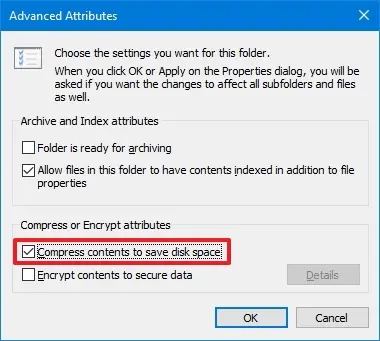
Click the Advanced button.

-
Check the “Compress contents to save disk space” option under the “Compress or Encrypt attributes” section.
-
Click the OK button.
-
Click the Apply button.
-
Select the “Apply changes to this folder, subfolders and files” option.
-
Click the OK button.
-
Click the OK button one more time.
After you complete the steps, the system will enable compression on the partition or folder to free up space on the drive.
9. Enable CompactOS
On Windows 10, CopactOS is a feature that compresses the installation of the operating system and apps on devices with limited capacity. You can use this feature to reclaim additional storage space.
To enable CompactOS to reclaim storage space on Windows 10, use these steps:
-
Open Start.
-
Search for Command Prompt, right-click the top result, and select the Run as administrator option.
-
Type the following command to enable Compress OS and press Enter:
compact.exe /compactOS:always
 Quick tip: You can run the
compact.exe /compactOS:nevercommand to undo the changes.
Once you complete the steps, the feature will compress the system files and apps to free up additional space on Windows 10.
10. Transfer files to another drive
Alternatively, you can connect a secondary storage using an external USB drive or internal hard drive to transfer your files to clear space in the system drive.
To free up space relocating files to another drive on Windows 10, use these steps:
-
Open File Explorer.
-
Open the folder with the files to transfer.
Quick note: Usually, you want to change the location for files that take up a lot of space, such as images, virtual machines, videos, etc. -
Select the files and click the Cut button from the command bar.

-
Open the new drive location.
-
Click the Paste button from the command bar.
Once you complete the steps, the system drive will have more space for other files. You may have to repeat the steps to transfer other files and folders. In addition to using File Explorer, you can perform the same task faster using commands with the Robocopy tool.
If, after using these methods, the computer continues to have low drive space, you may want to try resetting the system or performing a clean install of Windows 10. You can also Free up storage space by moving large files, such as videos, images, and virtual machines, to an external hard drive.
Update February 8, 2024: This guide has been updated to ensure accuracy and add more methods to optimize the storage space.

Mauro Huculak is a Windows How-To Expert and founder of Pureinfotech in 2010. With over 23 years as a technology writer and IT Specialist, Mauro specializes in Windows, software, and cross-platform systems such as Linux, Android, and macOS.
Certifications: Microsoft Certified Solutions Associate (MCSA), Cisco Certified Network Professional (CCNP), VMware Certified Professional (VCP), and CompTIA A+ and Network+.
Mauro is a recognized Microsoft MVP and has also been a long-time contributor to Windows Central.
You can follow him on YouTube, Threads, BlueSky, X (Twitter), LinkedIn and About.me. Email him at [email protected].