

- To install missing drivers on Windows 11, open Settings > Windows Update > Advanced options > Optional updates, choose the driver, and click “Download & install.”
- You can still use Device Manager, but you will need to provide the package manually, as this tool no longer connects to the Windows Update service.
On Windows 11, the system can automatically detect and install most hardware drivers through built-in mechanisms. However, this process does not always work perfectly. In some situations, you may still need to install a driver manually to get a device working properly.
For example, if you recently connected a new device, such as a printer, webcam, graphics adapter, or network card, and the operating system cannot recognize it, the driver may be missing from your installation.
When this happens, Windows 11 provides a couple of easy ways to install the required driver. You can download and install the driver through Windows Update, or use Device Manager to locate and install the appropriate driver for the device.

In this guide, I’ll outline the steps to download and install missing drivers on Windows 11.
- Install missing drivers on Windows 11 from Windows Update
- Install missing drivers on Windows 11 from Device Manager
- FAQs about installing missing drivers on Windows 11
Install missing drivers on Windows 11 from Windows Update
To install missing drivers on Windows 11, follow these steps:
-
Open Settings on Windows 11.
-
Click on Windows Update.
-
Click the Advanced options page.
-
Click the Optional updates setting under the “Optional updates” section.

-
Click the Driver updates setting.
-
Select the device driver your computer is missing.

-
Click the “Download & install” button.
Once you complete the steps, the missing driver will be installed on Windows 11.
When it comes to Windows Update settings, manufacturers usually provide only generic, basic drivers. If you want the most up-to-date driver version with all its features, it’s best to download the package from the device manufacturer’s support website, then use Device Manager to install it (see instructions below).
Install missing drivers on Windows 11 from Device Manager
On Windows 11, you can use Device Manager to install drivers. However, before proceeding, you must download the package from the manufacturer’s support website to your computer or onto a USB flash drive.
If the driver has a “.zip” or “.cab” extension, you must extract the files before following the instructions.
To install a missing driver, have the package ready or connect the USB drive with the files, and follow these steps:
-
Open Start.
-
Search for Device Manager and click the top result to open the app.
-
Right-click the device missing the driver and select the Update driver option.
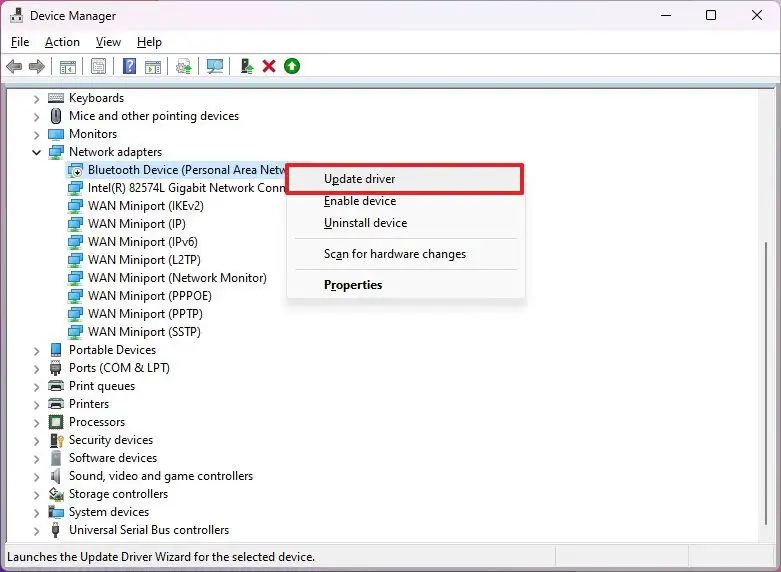 Quick note: The device in question may appear with a yellow mark and be labeled as unknown.
 -
Click the “Browse my computer for drivers” option.

-
Click the Browse button and select the folder containing the files for the missing driver.

-
Click the OK button.
-
Check the Include subfolders option.
-
Click the Next button.
-
Continue with the on-screen direction (if applicable).
After you complete the steps, the driver will install, allowing the device to interact with Windows 11.
If a device isn’t working despite having a driver, uninstalling it first may help. You can do this by right-clicking the device, selecting the “Uninstall device” option, and then reinstalling the driver.
If you’re trying to install a particular driver that doesn’t include a digital signature, Windows 11 won’t let you install it. In this case, if you know the driver is from a trusted source, you can disable driver signature enforcement to continue with the update.
You can also install drivers manually using the “.inf” file if you choose the “Let me pick” option and the “Have Disk” button. However, it’s important that you select the correct “.inf” file, as adding the wrong one can cause BSOD (Blue Screen of Death).
FAQs about installing missing drivers on Windows 11
Here’s a list of frequently asked questions (FAQs) and answers about the process to install drivers on Windows 11.
How do I install missing drivers on Windows 11?
To install missing drivers on Windows 11, open Settings > Windows Update > Advanced options > Optional updates, then select the driver under Driver updates and click Download & install. Once completed, Windows will automatically add the driver so the connected device can communicate properly with the operating system.
Why is a device not recognized on Windows 11?
A device may not be recognized on Windows 11 because the correct hardware driver is missing or outdated. Without the proper driver, the operating system cannot communicate with the device. Installing the driver through Windows Update or manually using Device Manager usually resolves the issue.
Can Device Manager download drivers from Windows Update on Windows 11?
No. On Windows 11, Device Manager no longer retrieves drivers directly from Windows Update. Instead, you must download the driver package from the manufacturer’s support website and install it manually by selecting “Browse my computer for drivers” and pointing to the extracted files.
Should I install drivers from Windows Update or the manufacturer’s website?
Both options work, but they serve different purposes. Windows Update typically provides generic drivers that ensure basic functionality. Drivers from the manufacturer’s website often include the latest updates, performance improvements, and advanced features for the device, making them the better choice for full functionality.
How do I install a driver manually using Device Manager on Windows 11?
To manually install a driver on Windows 11, open Device Manager, right-click the device with the missing driver, and select “Update driver.” Choose “Browse my computer for drivers,” locate the extracted driver folder, enable “Include subfolders,” and click “Next” to complete the installation.
What does the yellow exclamation mark mean in Device Manager?
A yellow exclamation mark in Device Manager indicates a hardware problem, usually caused by a missing, incompatible, or corrupted driver. Installing the correct driver from Windows Update or the manufacturer’s support website typically resolves the issue and restores the device’s proper functionality.
Can installing the wrong driver cause problems on Windows 11?
Yes. Installing the wrong driver on Windows 11 can cause hardware malfunctions, system instability, or even a Blue Screen of Death. When installing drivers manually, ensure you select the correct “.inf” file for your device model and system architecture.
How can I find out which driver is missing on Windows 11?
You can identify a missing driver by opening Device Manager on Windows 11 and looking for devices marked with a yellow exclamation point or labeled “Unknown device”. Right-click the device, choose “Properties,” and open the “Details” tab. From the “Hardware Ids” value, you can search online to determine the exact driver required.
Do I need to restart my computer after installing drivers on Windows 11?
Yes, restarting is often recommended after installing drivers on Windows 11. While some drivers activate immediately, many require a reboot to properly load system services and hardware components.
Update March 13, 2026: This guide has been updated to ensure accuracy and reflect changes to the process.

Mauro Huculak is a Windows How-To Expert and founder of Pureinfotech in 2010. With over 23 years as a technology writer and IT Specialist, Mauro specializes in Windows, software, and cross-platform systems such as Linux, Android, and macOS.
Certifications: Microsoft Certified Solutions Associate (MCSA), Cisco Certified Network Professional (CCNP), VMware Certified Professional (VCP), and CompTIA A+ and Network+.
Mauro is a recognized Microsoft MVP and has also been a long-time contributor to Windows Central.
You can follow him on YouTube, Threads, BlueSky, X (Twitter), LinkedIn and About.me. Email him at [email protected].