

- Zorin OS is a Windows-friendly Linux alternative designed for users who want a familiar desktop and better performance on older hardware.
- Dual-booting allows Windows 11 and Zorin OS to coexist, letting users explore Linux without abandoning Windows apps, games, or workflows.
- Zorin OS 18 has surpassed 2 million downloads, driven by Windows 10 end of support, Windows 11 hardware restrictions, AI features, and bloatware concerns.
Installing Zorin OS alongside Windows 11 in a dual-boot setup has become increasingly popular as users seek a practical way to explore Linux without sacrificing the familiarity and compatibility of Windows 11. Whether you’re trying Linux for the first time, seeking a faster, more private desktop experience, or needing access to Linux-only tools, a dual-boot setup provides the best of both worlds.
Zorin OS is particularly appealing because it’s designed to feel familiar to Windows users, minimizing the learning curve while delivering the performance, security, and flexibility Linux is known for. At the same time, keeping Windows 11 installed ensures you can continue using essential apps, games, and workflows that rely on Microsoft’s ecosystem.
Zorin OS 18 has already surpassed 2 million downloads in under 3 months, with over 1 million users switching from Windows devices for various reasons. Many are switching because of Windows 10’s end of support, frustration with Windows 11’s AI-driven features, stricter system requirements, or unnecessary bloatware.
Setting up a dual-boot configuration with Zorin OS and Windows 11 is straightforward and similar to installing Ubuntu alongside Windows. The process involves completing preparation steps, handling storage partitioning, running the installation, and finishing with a few post-installation tasks to ensure a smooth experience.


In this guide, I’ll outline the steps to dual-boot Windows 11 and Zorin OS on the same computer.
Dual‑boot Windows 11 alongside Zorin OS
If you plan to set up a dual-boot configuration. First, you have to create a USB bootable media, back up your current setup, install the Linux-based operating system, and perform post-installation tasks, such as installing updates.
- Zorin OS hardware requirements
- Create Zorin OS USB bootable media
- Create a full backup of Windows 11
- Shrink Windows 11 partition
- Disable BitLocker on Windows 11
- Dual-boot Windows 11 and Zorin OS
- Check for Zorin OS updates manually
- FAQs about Zorin OS and Windows 11 dual-boot
Zorin OS hardware requirements
These are the minimum and recommended system requirements for Zorin OS:
- CPU: Single or multi-core 64-bit processor
- RAM: 2GB.
- Storage: 15 GB (Core), 32 GB (Education), or 40 GB (Pro).
- Display: 800×600 resolution.
On Windows 11, you can view hardware specifications in Settings > System > About, under the “Device Specifications” section.
Create Zorin OS USB bootable media
To create a Zorin OS USB bootable media, follow these steps:
-
Open the Zorin OS download page.
-
Click the Download button for the Core edition (unless you have purchased the Pro edition).

-
Save the ISO file on your device.
-
Click the link to download the latest version under the “Download” section.
-
Choose the USB flash drive from the “Device” setting.
-
Double-click the executable to launch the tool.
-
Click the Select button.

-
Select the Zorin OS ISO file.
-
Click the Open button.
-
Continue with the default settings after the download.
-
(Optional) Specify a name for the drive under the “Volume label” setting.
-
Click the Start button.
-
Click the OK button with the default option.

-
Click the Yes button.

-
Click the OK button.
Once you complete the steps, you can proceed to back up the current setup, then install Zorin OS on your computer.
Before launching the installation, you must ensure the computer can boot from USB by changing the boot order in the motherboard’s firmware, which may require accessing the UEFI settings. However, since most devices have different settings, you must check your manufacturer’s support website for more specific details.
Alternatively, you can use other tools such as Ventoy, balenaEtcher, or Universal USB Installer (UUI).
Create a full backup of Windows 11
The next step is to create a full backup of your current setup in case something goes wrong and you need to roll back.
To create a full backup of Windows 11, connect an external USB drive with enough storage, and follow these steps:
-
Open Start.
-
Search for Control Panel and click the top result to open the app.
-
Click on System and Security.
-
Click on File History.

-
Click the “System Image Backup” option from the left pane.

-
Click the “Create a system image” option from the left pane.

-
Select the external drive to save the Windows 11 backup.

-
Click the Next button.
-
Click the Start backup button.

-
Click the No button.
-
Click the Close button.
Once you complete the steps, a full backup of your Windows 11 setup will be created on the external storage, including the installation files, settings, applications, and personal files.
You will also be prompted to create a repair disk, but you can ignore this option since you can use the Windows 11 bootable media to access the recovery settings to restore the backup.
Shrink Windows 11 partition
Although the Zorin OS installer provides an option to install alongside Windows 11, it may not always work as expected. To ensure a smoother installation, manually shrink the Windows 11 partition to create space for Zorin OS.
Alternatively, you can use a secondary internal drive for the Zorin OS installation. This approach keeps each operating system on a separate physical drive, avoiding the need to modify the existing Windows partition and reducing the risk of accidental data loss.
If your device does not currently have an operating system installed, follow these instructions to perform a clean installation of Windows 11. Once the operating system is installed, proceed with the instructions below to set up a dual-boot configuration.
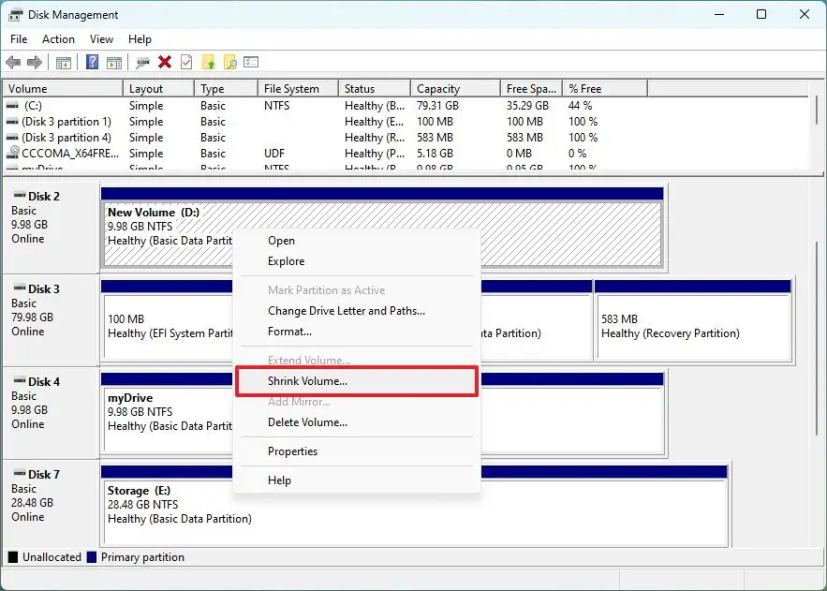
To shrink a partition on Windows 11 using Disk Management, follow these steps:
-
Open Start.
-
Search for Create and format hard disk partitions and click the top result to open the Disk Management console.
-
Right-click the drive you want to change its partition size and select the Shrink Volume option.
-
Confirm the amount of space to shrink the partition (in megabytes).

-
Click the Shrink button.
Once you complete the steps, you’ll end up with a small partition and some unallocated space to install Zorin OS. You can also use other methods to resize the partition on Windows 11.
Disable BitLocker on Windows 11
You cannot install Zorin OS alongside Windows 11 when BitLocker is enabled. As a result, you have to disable device encryption before proceeding with the installation.
To disable BitLocker on Windows 11, follow these steps:
-
Open Settings.
-
Click the Privacy & security page.
-
Click the Device encryption setting.
-
Turn off the Device encryption toggle switch.

After you complete the steps, BitLocker encryption will be disabled on your computer, and you can proceed with installing Zorin OS.
Dual-boot Windows 11 and Zorin OS
To dual-boot Zorin OS and Windows 11 on your computer, follow these steps:
-
Start the PC with the Zorin OS USB flash drive.
-
Select the “Try or Install Zorin OS” option and press Enter.

-
Select the installation language.
-
Click the “Install Zorin OS” button on the desktop.

-
Select the keyboard layout setting.
-
Click the Continue button.
-
Check the “Download updates while installing Zorin OS” option.

-
Check the “Install third-party software for graphics and Wi-Fi hardware and additional media formats” option.
-
Create and confirm a Secure Boot password (if applicable).
-
(Optional) Select the “Don’t participate in the census” option to prevent the company from collecting anonymous data to count users of this operating system.
-
Click the Continue button.
-
Select the “Install Zorin OS alongside Windows Boot Manager” option.

-
Click the Install Now button.
-
Click the Continue button.
-
Select your Linux installation region.

-
Click the Continue button.
-
Create a local account for the Zorin OS installation.

-
Click the Continue button.
-
Click the Restart now button.
-
Disconnect the USB flash drive from the computer and press Enter.
Once you complete the steps, the system will restart, and you will have access to the new desktop.

It’s important to note that the Linux boot menu will always appear at boot, and you’ll have to choose the operating system you want to start.
Check for Zorin OS updates and drivers manually
After the installation, it’s important to check for and download any available updates for Zorin OS.
To download and install system updates and drivers, follow these steps:
-
Open the app launcher (Start-like menu).
-
Search for “Software Updater,” then click the top result to open the app.
-
Click the Install Now button (if applicable).

-
Sign in with your account credentials.
-
Click the Restart Now button.
Once you complete the steps, the available updates will be downloaded and installed on your computer.
FAQs about Zorin OS and Windows 11 dual-boot
Here’s a list of frequently asked questions (FAQs) and answers about installing Zorin OS alongside Windows 11.
Can I dual-boot Zorin OS with Windows 11 safely?
Yes. Dual-booting Zorin OS with Windows 11 is safe when you follow best practices, including backing up your data, shrinking the Windows partition correctly, and disabling BitLocker before installation.
Will dual-booting delete my Windows 11 files or apps?
No. A proper dual-boot setup keeps Windows 11 intact. Your files, apps, and settings remain untouched as long as you install Zorin OS in the unallocated space created for Linux.
Do I need to disable BitLocker to install Zorin OS?
Yes. BitLocker must be disabled before installing Zorin OS alongside Windows 11. Linux installers cannot reliably modify encrypted Windows partitions, which can block a dual-boot setup.
Is Zorin OS a good Linux choice for Windows users?
Yes. Zorin OS is designed specifically for users coming from Windows. It uses a familiar desktop layout, supports common Windows-style workflows, and minimizes the learning curve.
Can I remove Zorin OS later and keep Windows 11?
Yes. You can remove Zorin OS by deleting its Linux partitions and restoring the Windows boot loader. Windows 11 will continue working normally after the cleanup.
Will I see a boot menu every time I start my PC?
Yes. After installation, a boot menu appears at startup, allowing you to choose between Windows 11 and Zorin OS. You can also set a default operating system if needed.
Does Zorin OS work well on older or unsupported hardware?
Yes. Zorin OS runs efficiently on hardware that struggles with Windows 11 requirements, making it a popular option for older PCs or devices that cannot officially upgrade.
Can I use Secure Boot with Zorin OS?
Yes. Zorin OS supports Secure Boot. During installation, you may be prompted to create a Secure Boot password, which allows the system to load Linux securely.
Do I need an internet connection to install Zorin OS?
An internet connection is not required, but it is recommended. Staying online during installation lets Zorin OS automatically download updates, drivers, and media codecs.
Should I dual-boot Windows 11 and Zorin OS?
You should dual-boot Windows 11 and Zorin OS if you want to explore Linux without giving up Windows apps, games, or workflows. A dual-boot setup lets you test Zorin OS at your own pace while keeping Windows 11 available for compatibility, work, or gaming needs.

Mauro Huculak is a Windows How-To Expert and founder of Pureinfotech in 2010. With over 22 years as a technology writer and IT Specialist, Mauro specializes in Windows, software, and cross-platform systems such as Linux, Android, and macOS.
Certifications: Microsoft Certified Solutions Associate (MCSA), Cisco Certified Network Professional (CCNP), VMware Certified Professional (VCP), and CompTIA A+ and Network+.
Mauro is a recognized Microsoft MVP and has also been a long-time contributor to Windows Central.
You can follow him on YouTube, Threads, BlueSky, X (Twitter), LinkedIn and About.me. Email him at [email protected].